Shader Settings
lilToon
All parts use lilToon. When creating new materials, match the values on this page.
Lighting Settings (Common to All Parts)
These values are linked to the Brightness / Lighting(mono) parameters. If the values differ, new parts will behave differently from the rest when adjusting brightness.
| Property | Default (Radial 0) | Max (Radial 1) |
|---|---|---|
_LightMinLimit | 0.05 | 1.0 |
_MonochromeLighting | 0.5 | 1.0 |
_LightMaxLimit | 1.0 | — |
_lilDirectionalLightStrength | 1.0 | — |
_VertexLightStrength | 0 | — |
Stencil System
The stencil system controls whether pixels are passed or rejected during rendering, using numeric values stored in a buffer. lilToon uses the following two properties.
| Property | Role |
|---|---|
| StencilRef | Reference value used for comparison (0–255) |
| StencilComp | Comparison method. Always: always passes (writes value to buffer). Equal: renders only pixels where the buffer value matches Ref. NotEqual: renders only pixels where the buffer value does not match Ref. |
3+1 uses two stencil channels: Ref=1 (for hair cutout) and Ref=2 (for manga effect mask).
Hair Cutout (Eyebrows / Eyeliner)
This system makes eyebrows visible through the front hair even when the fringe overlaps them.
- The face mesh (SA_BODY_B / SA_BODY_C) is rendered with
StencilComp: Always, writing 1 into the stencil buffer for every pixel where the face is visible. - The front hair mesh (SA_HAIR_B) is rendered with
StencilComp: NotEqual / StencilRef: 1, so it skips rendering on pixels where the buffer value is 1 (i.e., over the face). - As a result, only the portion of the front hair that overlaps the face is cut out, revealing the eyebrows and eyeliner.
| Material | Role | StencilRef | StencilComp |
|---|---|---|---|
| SA_BODY_B / SA_BODY_C | Face (write) | 1 | Always |
| SA_HAIR_B | Front hair (cut out over face) | 1 | NotEqual |
When adding new front hair: Set StencilComp: NotEqual / StencilRef: 1 on the material. Without this setting, eyebrows and eyeliner will be hidden behind the hair.
Manga Effect Mask
This system restricts facial effects such as pallor to the skin area of the face only.
- The face skin mesh (SA_BODY_A) is rendered with
StencilComp: Always, writing 2 into the stencil buffer for every pixel where the skin is visible. - The manga effect (SA_EFFECT_A) is rendered with
StencilComp: Equal / StencilRef: 2, so it appears only on pixels where the buffer value is 2 (i.e., over the skin). - As a result, the effect is naturally masked to follow the face outline.
| Material | Role | StencilRef | StencilComp |
|---|---|---|---|
| SA_BODY_A | Face skin (write) | 2 | Always |
| SA_EFFECT_A | Manga effect (skin area only) | 2 | Equal |
When adding effects overlaid on the face: Set StencilComp: Equal / StencilRef: 2 to restrict rendering to the skin area only.
Checklist for Adding New Parts
| Part to Add | Required Stencil Setting |
|---|---|
| Front hair / parts overlapping front hair | StencilComp: NotEqual / StencilRef: 1 |
| Effects overlaid on the face | StencilComp: Equal / StencilRef: 2 |
| Normal clothing / accessories | Not required (leave as default) |
Render Queue
| Material | RenderQueue | Notes |
|---|---|---|
| SA_BODY_A | 2000 | Stencil write |
| SA_EFFECT_A | 2460 | Manga effect |
| SA_HAIR_A | 2500 | Hair |
Placement guidelines for new parts:
- Normal clothing / accessories: around 2000
- Transparent / semi-transparent effects: 2450–2490
- Parts to render above hair: 2500 or higher
HINASAKI SFX SHADER
Effects such as sweat, tears, and mosaic use HINASAKI SFX SHADER rather than lilToon. This is a suite of custom shaders featuring background refraction via GrabPass and OpenLit lighting. The shader can be switched via the "Effect Mode" dropdown in the material inspector.
| Shader | Usage |
|---|---|
| Teardrop (うるうる目・落涙) | Eye glistening, tears, falling droplets |
| Waterdrop (水滴) | Sweat and other water droplets flowing across a surface |
| Mosaic (平面モザイク) | Mosaic processing of the background |
Teardrop (HSFX_Teardrop)
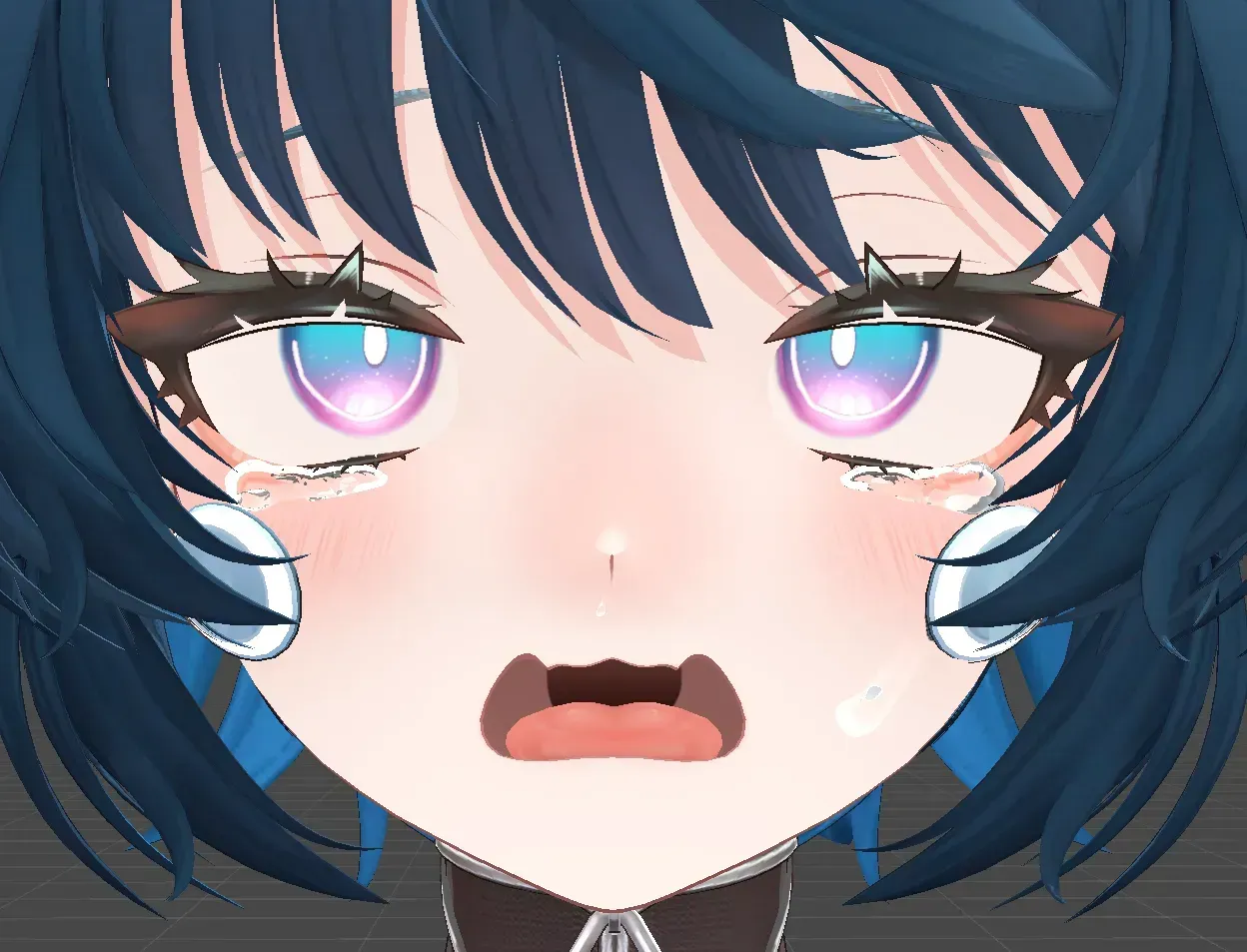
The effect is composed of three effect layers.
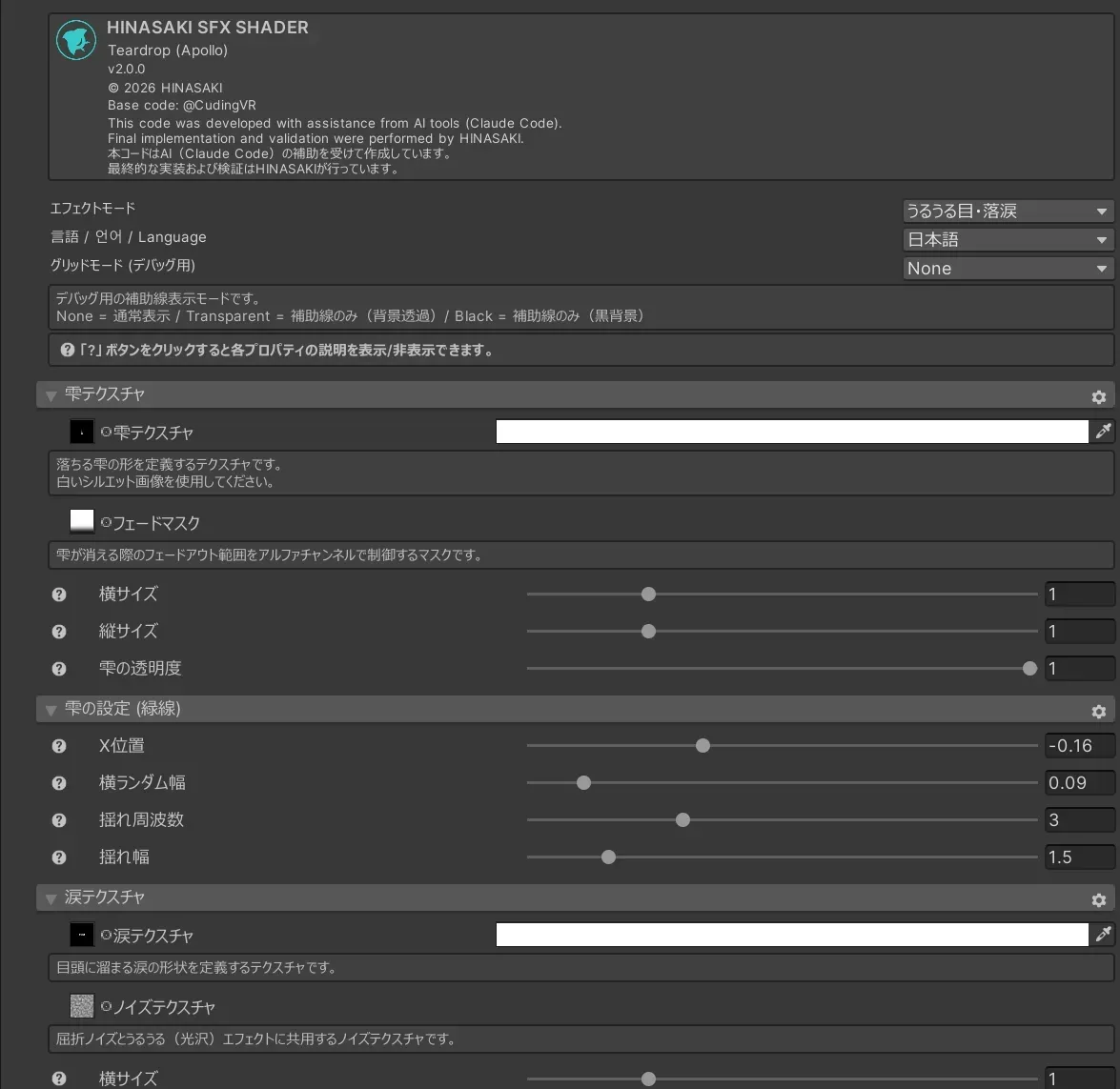
Drop Texture (Falling Droplets)
| Property | Description |
|---|---|
| Drop Texture / Drop Color | Shape texture (white silhouette) and highlight color of falling droplets |
| Fade Mask | Mask controlling the fade-out at the end of the droplet's fall via the alpha channel |
| Horizontal Size / Vertical Size | Texture display size (1 = standard; center position does not shift) |
| Drop Opacity | Alpha of the entire effect. Can be animated for fade-in/out |
Drop Settings (Green Line)
| Property | Description |
|---|---|
| X Position | Horizontal base position of the droplet. Adjust while monitoring the green debug line |
| Horizontal Random Width | Random spread on the X axis. Larger values produce wider left–right scatter |
| Sway Frequency | Frequency of left–right sway during the fall. Larger values produce finer oscillation |
| Sway Amplitude | Amplitude of left–right sway during the fall. Larger values produce wider swaying |
Tear Texture (Tears Pooling at the Inner Corner)
| Property | Description |
|---|---|
| Tear Texture / Tear Color | Shape texture and highlight color of tears pooling at the inner corner of the eye |
| Noise Texture | Shared noise texture used for both refraction noise and the glistening effect |
| Horizontal Size / Vertical Size | Texture display size |
| Tear Opacity | Can be animated for fade-in/out |
Tear Settings (Yellow Line)
| Property | Description |
|---|---|
| X Position | Horizontal position of the tear. Check using the yellow debug line |
| Y Position | Vertical position of the tear. Also serves as the base Y for the glistening effect |
| Noise Size | UV scale of the refraction noise. Larger values produce finer grain |
| Noise Speed | Noise scroll speed. Values around 0.1–0.3 are recommended |
| Noise Strength | Strength of the refraction noise. Excessive values will look unnatural |
Glistening Texture & Settings (Blue Line)
| Property | Description |
|---|---|
| Glisten Mask | Mask controlling the area of the glistening effect via the alpha channel |
| Y Position (added to TearY) | Starting Y coordinate of the glistening effect, added to the tear's Y position |
| Noise Size / Speed | UV scale and scroll speed of the noise used for the glistening effect |
| Glisten Strength | Strength of the gloss effect. 0 = disabled / 1.0 = maximum |
| Noise Distance Correction (m) | Reference distance for automatic noise size correction based on camera distance |
| Glisten Fade | Influence of refraction distortion. Can be animated for fade-in/out |
Overall Effect Settings
| Property | Description |
|---|---|
| Texture Strength | Brightness of drop/tear highlights. 0 = hidden / 1.0 = maximum |
| Refraction Strength | Strength of background refraction (distortion) |
| Fall Speed | Speed of the droplet fall animation (0.01–3) |
Waterdrop (HSFX_Waterdrop)
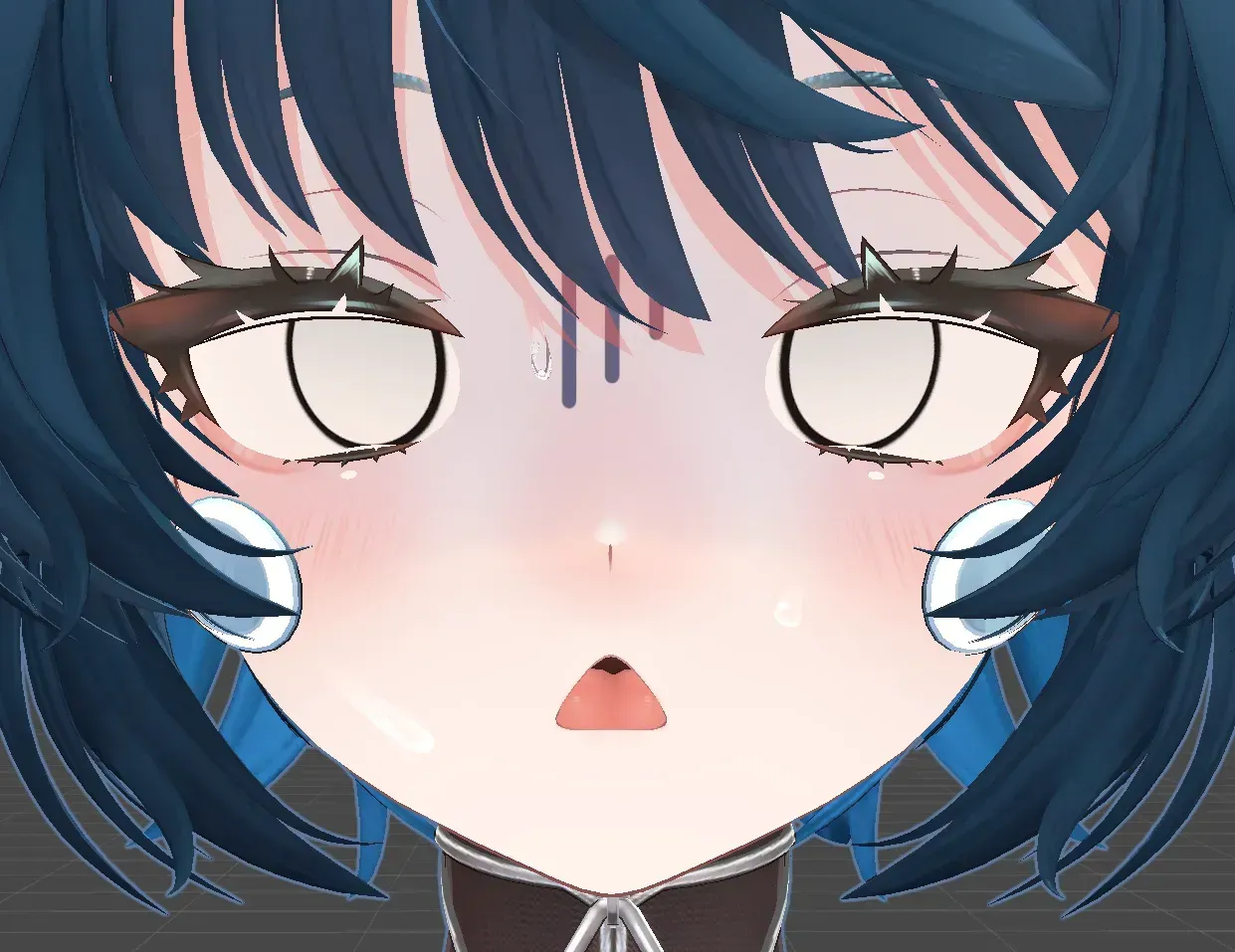
A water droplet effect arranged in a grid across the entire surface.
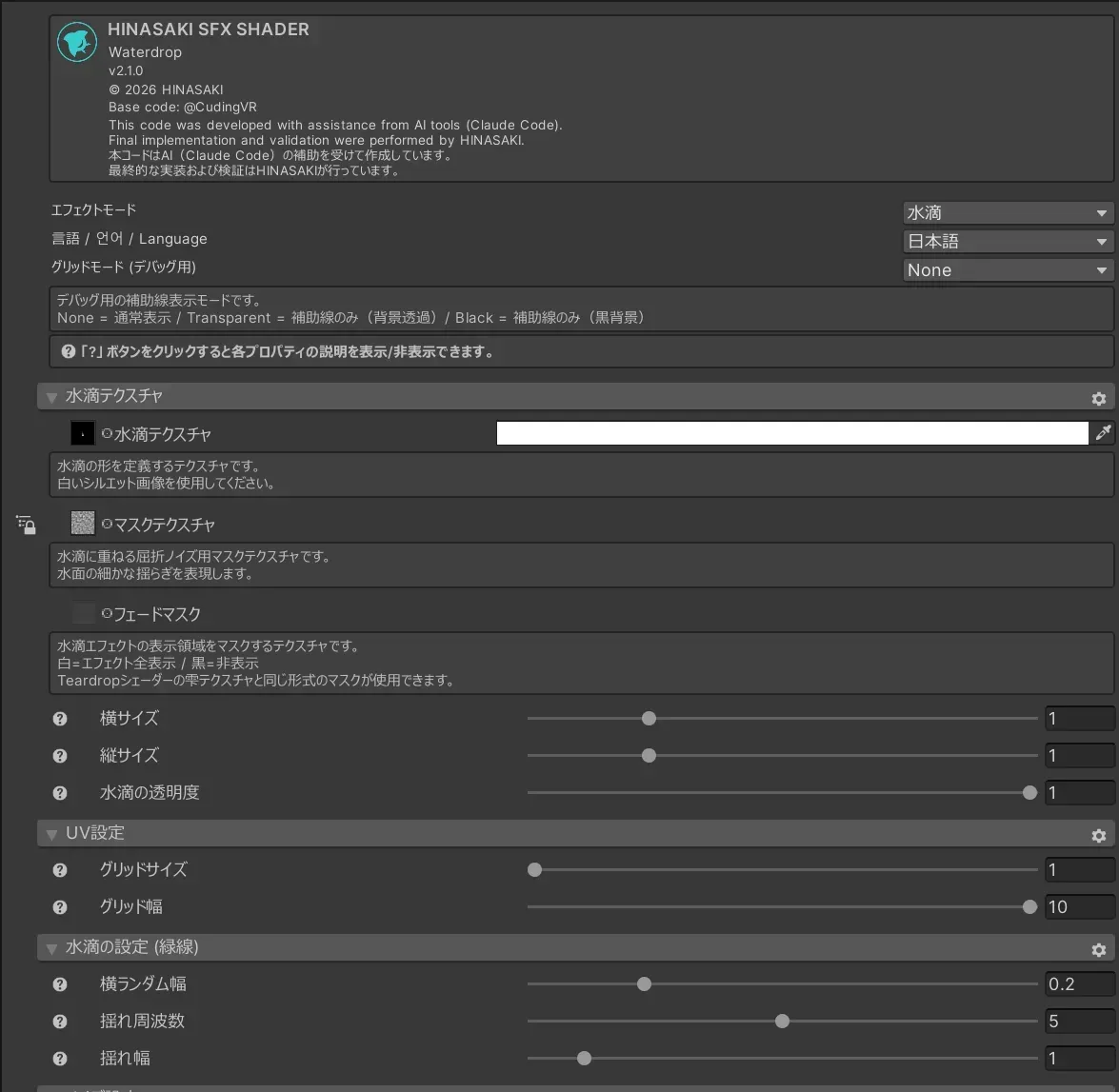
Waterdrop Texture
| Property | Description |
|---|---|
| Waterdrop Texture / Drop Color | Shape texture (white silhouette) and highlight color of water droplets |
| Mask Texture | Mask for refraction noise overlaid on the droplets |
| Fade Mask | Display area mask for the effect (white = fully visible / black = hidden) |
| Horizontal Size / Vertical Size | Texture display size |
| Waterdrop Opacity | Can be animated for fade-in/out |
UV Settings
| Property | Description |
|---|---|
| Grid Size | Number of droplet rows in UV space. Larger values stack more droplets vertically |
| Grid Width | Number of droplet columns in UV space. Larger values place more droplets horizontally |
Drop Settings (Green Line) / Noise Settings / Overall Effect Settings
These are the same properties as the Teardrop drop settings, noise settings, and overall effect settings.
Mosaic (HSFX_Mosaic)
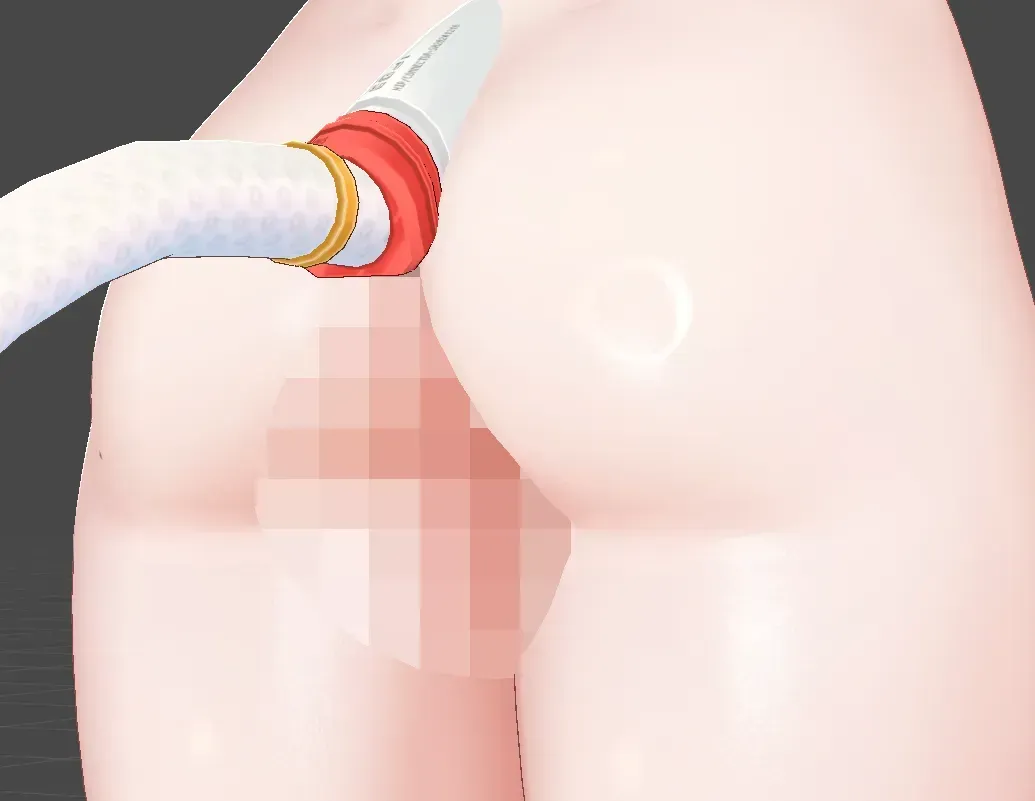
A shader that applies mosaic processing to the background visible through the mesh. It has only one property.
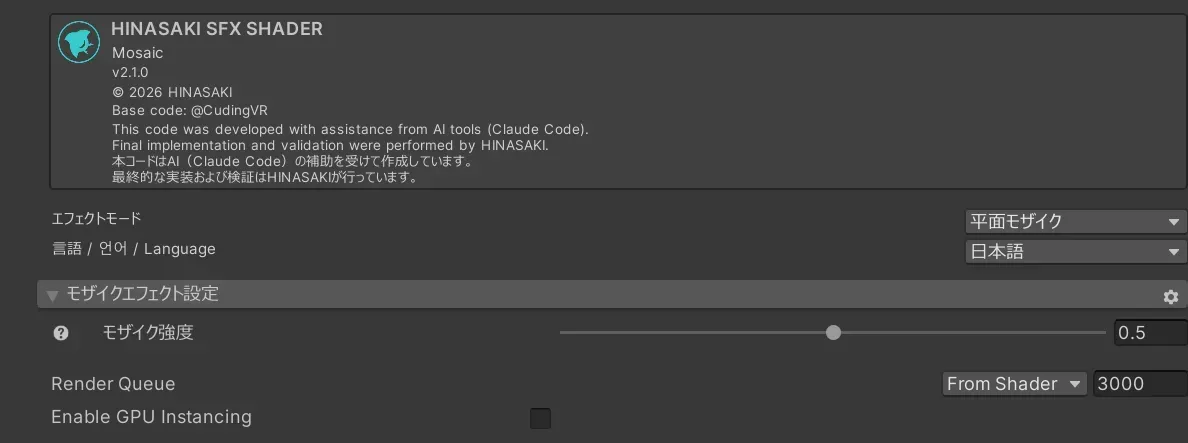
| Property | Description |
|---|---|
Mosaic Strength (_MosaicPercentage) | Size of the mosaic blocks. 0 = no mosaic (sharp) / 1 = maximum mosaic |
The block size is automatically adjusted based on camera distance and field of view (FOV), so the mosaic appears uniform even from a distance. When the camera is outside the mesh, the mosaic is applied to the front surface; when inside, it is applied to the entire back surface.
Debug Mode (Grid Mode)
Shared between Teardrop and Waterdrop. Displays guide lines for position adjustment.
| Mode | Display |
|---|---|
| None | Normal display (default) |
| Transparent | Guide lines only (transparent background) |
| Black | Guide lines only (black background) |
Guide line colors: green = droplet range, yellow = tear position, blue = glistening boundary
Uploading with a mode other than None will display the grid in-game as well. Always set it back to None before uploading.
OpenLit Lighting Settings
Teardrop and Waterdrop use the same OpenLit library as lilToon. When creating new materials, match the values to the base avatar.
| Property | Value | Description |
|---|---|---|
_LightMinLimit | 0.05 | Minimum luminance in dark environments |
_LightMaxLimit | 1.0 | Maximum luminance in bright environments |
_MonochromeLighting | 0 | Applies color lights in grayscale (1.0 = monochrome) |
_VertexLightStrength | 0 | Influence strength of nearby point lights |
_AsUnlit | 0 | When set to 1.0, ignores lighting and renders at a constant brightness |